Overview
MCP access for my.senvend
Connect an AI assistant such as Claude or ChatGPT directly to your telemetry data and ask it about your machines, locations and sales – without opening my.senvend.
Read-only access
You can query data, but you cannot change anything on your machines.
Only your own data
Only your own machines, locations and sales are visible – and of those only what your user has permissions for.
Claude & ChatGPT
Connect your preferred AI assistant to your telemetry data.
Automatic for telemetry users
Every user of the SENVEND telemetry can use the access right away.
Background
What is MCP?
MCP (Model Context Protocol) is an open standard that lets AI assistants access data from external systems directly – while you are chatting with them.
Instead of looking it up in my.senvend yourself, you ask your AI assistant – for example „Which machines currently have a critical fill level?" or „How much revenue did the Hauptbahnhof location make last week?". The assistant fetches the answer directly from your own telemetry data through the SENVEND MCP access.
Scope
What you can query
The MCP access is read-only access to your own data from my.senvend.
Machines
Status, fill level, last sale, location and terminal serial number.
Locations
All your locations with the machines assigned to them.
Sales and revenue
Sales figures and revenue over any period.
Stock
Current fill levels and pack lists of your machines.
Events
Faults and messages from your machines.
Statements
Your statements and reports.
What is not possible
Nothing on your machines can be changed through the MCP access – you cannot restart a terminal, dispense a product or book credit, for example. For that you still use my.senvend directly.
Getting started
Access and permissions
You do not have to request anything: every user of the SENVEND telemetry can use the MCP access right away.
- Access is already there
Every user with a my.senvend account for the telemetry can use the MCP server. No activation by SENVEND is required.
- Check the permissions
Through MCP you see exactly the data your user has permissions for in the user management – no more. An admin assigns the roles in my.senvend under Verwaltung (administration) in the Benutzer (users) menu.
- Enter the server address
The server address is always
https://my.senvend.com/mcp. Enter it in your AI assistant – the two guides below explain how. - Sign in with my.senvend
When connecting you sign in via OAuth with your email address and your my.senvend password – there is no additional key.
Guide
Connecting Claude
This is how you connect Claude (desktop or Claude Code) to your SENVEND MCP access.
- Open the connector settings
In Claude go to Settings and then to Connectors. Choose Add custom connector there.
- Enter the server address
Enter as the URL:
URL: https://my.senvend.com/mcp - Sign in with my.senvend
Claude then opens the login – sign in there via OAuth with your email address and your my.senvend password.
- Save the connection
Save the connector. From now on Claude can fetch your my.senvend data on request.
If you use Claude Code, you can alternatively add the server directly from the command line:
claude mcp add --transport http senvend https://my.senvend.com/mcpGuide
Connecting ChatGPT
This is how you connect ChatGPT to your SENVEND MCP access.
- Open the connector settings
In ChatGPT go to Settings and look for Connectors or MCP servers.
- Add a new connector
Create a new connector and enter
https://my.senvend.com/mcpas the server address. - Sign in with my.senvend
ChatGPT then opens the login – sign in there via OAuth with your email address and your my.senvend password.
- Save the connection
Save the connection. From now on ChatGPT can fetch your my.senvend data on request.
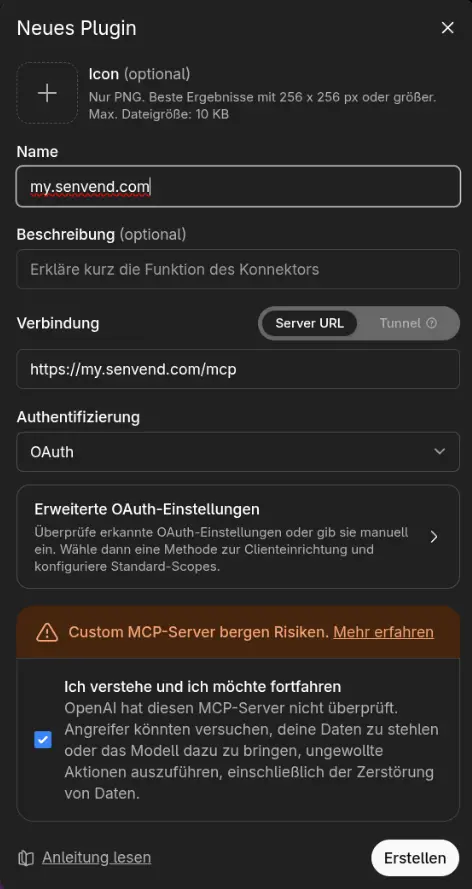
The exact name and position of the menu item can differ depending on your version of ChatGPT – if in doubt, search for „Connectors" or „MCP" in the settings.
Security
Secure and under your control
The MCP access is deliberately kept simple: read-only, only your own data.
You sign in via OAuth with your email address and password. The same permissions apply as in my.senvend: only what is enabled for your user in the user management is visible.
Frequently asked questions
Frequently asked questions about the MCP access
Can I also change something on my machine with MCP?
No. The MCP access is read-only – restarting a terminal, dispensing a product or booking credit still only works directly in my.senvend.
Do I also see data from other operators?
No. You only see the data of your own company.
Which AI assistants are supported?
In principle every MCP-capable assistant. You will find specific guides for Claude and ChatGPT above.
Do I have to request the access?
No. Every user of the SENVEND telemetry can use the MCP access directly. You enter the server address in your AI assistant and sign in with your my.senvend credentials.
Do I see more through MCP than in my.senvend?
Via MCP, you can also query data that isn't shown in the my.SENVEND interface. Your user permissions still apply.
What do I do if I cannot log in?
Check your email address and your my.senvend password. If the problem persists, contact our support – we will check your access.
Any more questions about the MCP access?
Our support team is happy to help.



Overview
MCP access for my.senvend
Connect an AI assistant such as Claude or ChatGPT directly to your telemetry data and ask it about your machines, locations and sales – without opening my.senvend.
Read-only access
You can query data, but you cannot change anything on your machines.
Only your own data
Only your own machines, locations and sales are visible – and of those only what your user has permissions for.
Claude & ChatGPT
Connect your preferred AI assistant to your telemetry data.
Automatic for telemetry users
Every user of the SENVEND telemetry can use the access right away.
Background
What is MCP?
MCP (Model Context Protocol) is an open standard that lets AI assistants access data from external systems directly – while you are chatting with them.
Instead of looking it up in my.senvend yourself, you ask your AI assistant – for example „Which machines currently have a critical fill level?" or „How much revenue did the Hauptbahnhof location make last week?". The assistant fetches the answer directly from your own telemetry data through the SENVEND MCP access.
Scope
What you can query
The MCP access is read-only access to your own data from my.senvend.
Machines
Status, fill level, last sale, location and terminal serial number.
Locations
All your locations with the machines assigned to them.
Sales and revenue
Sales figures and revenue over any period.
Stock
Current fill levels and pack lists of your machines.
Events
Faults and messages from your machines.
Statements
Your statements and reports.
What is not possible
Nothing on your machines can be changed through the MCP access – you cannot restart a terminal, dispense a product or book credit, for example. For that you still use my.senvend directly.
Getting started
Access and permissions
You do not have to request anything: every user of the SENVEND telemetry can use the MCP access right away.
- Access is already there
Every user with a my.senvend account for the telemetry can use the MCP server. No activation by SENVEND is required.
- Check the permissions
Through MCP you see exactly the data your user has permissions for in the user management – no more. An admin assigns the roles in my.senvend under Verwaltung (administration) in the Benutzer (users) menu.
- Enter the server address
The server address is always
https://my.senvend.com/mcp. Enter it in your AI assistant – the two guides below explain how. - Sign in with my.senvend
When connecting you sign in via OAuth with your email address and your my.senvend password – there is no additional key.
Guide
Connecting Claude
This is how you connect Claude (desktop or Claude Code) to your SENVEND MCP access.
- Open the connector settings
In Claude go to Settings and then to Connectors. Choose Add custom connector there.
- Enter the server address
Enter as the URL:
URL: https://my.senvend.com/mcp - Sign in with my.senvend
Claude then opens the login – sign in there via OAuth with your email address and your my.senvend password.
- Save the connection
Save the connector. From now on Claude can fetch your my.senvend data on request.
If you use Claude Code, you can alternatively add the server directly from the command line:
claude mcp add --transport http senvend https://my.senvend.com/mcpGuide
Connecting ChatGPT
This is how you connect ChatGPT to your SENVEND MCP access.
- Open the connector settings
In ChatGPT go to Settings and look for Connectors or MCP servers.
- Add a new connector
Create a new connector and enter
https://my.senvend.com/mcpas the server address. - Sign in with my.senvend
ChatGPT then opens the login – sign in there via OAuth with your email address and your my.senvend password.
- Save the connection
Save the connection. From now on ChatGPT can fetch your my.senvend data on request.
The exact name and position of the menu item can differ depending on your version of ChatGPT – if in doubt, search for „Connectors" or „MCP" in the settings.
Security
Secure and under your control
The MCP access is deliberately kept simple: read-only, only your own data.
You sign in via OAuth with your email address and password. The same permissions apply as in my.senvend: only what is enabled for your user in the user management is visible.
Frequently asked questions
Frequently asked questions about the MCP access
Can I also change something on my machine with MCP?
No. The MCP access is read-only – restarting a terminal, dispensing a product or booking credit still only works directly in my.senvend.
Do I also see data from other operators?
No. You only see the data of your own company.
Which AI assistants are supported?
In principle every MCP-capable assistant. You will find specific guides for Claude and ChatGPT above.
Do I have to request the access?
No. Every user of the SENVEND telemetry can use the MCP access directly. You enter the server address in your AI assistant and sign in with your my.senvend credentials.
Do I see more through MCP than in my.senvend?
Via MCP, you can also query data that isn't shown in the my.SENVEND interface. Your user permissions still apply.
What do I do if I cannot log in?
Check your email address and your my.senvend password. If the problem persists, contact our support – we will check your access.
Any more questions about the MCP access?
Our support team is happy to help.